
DKIM, DMARC, and SPF: Getting Email Deliverability Right in 2026
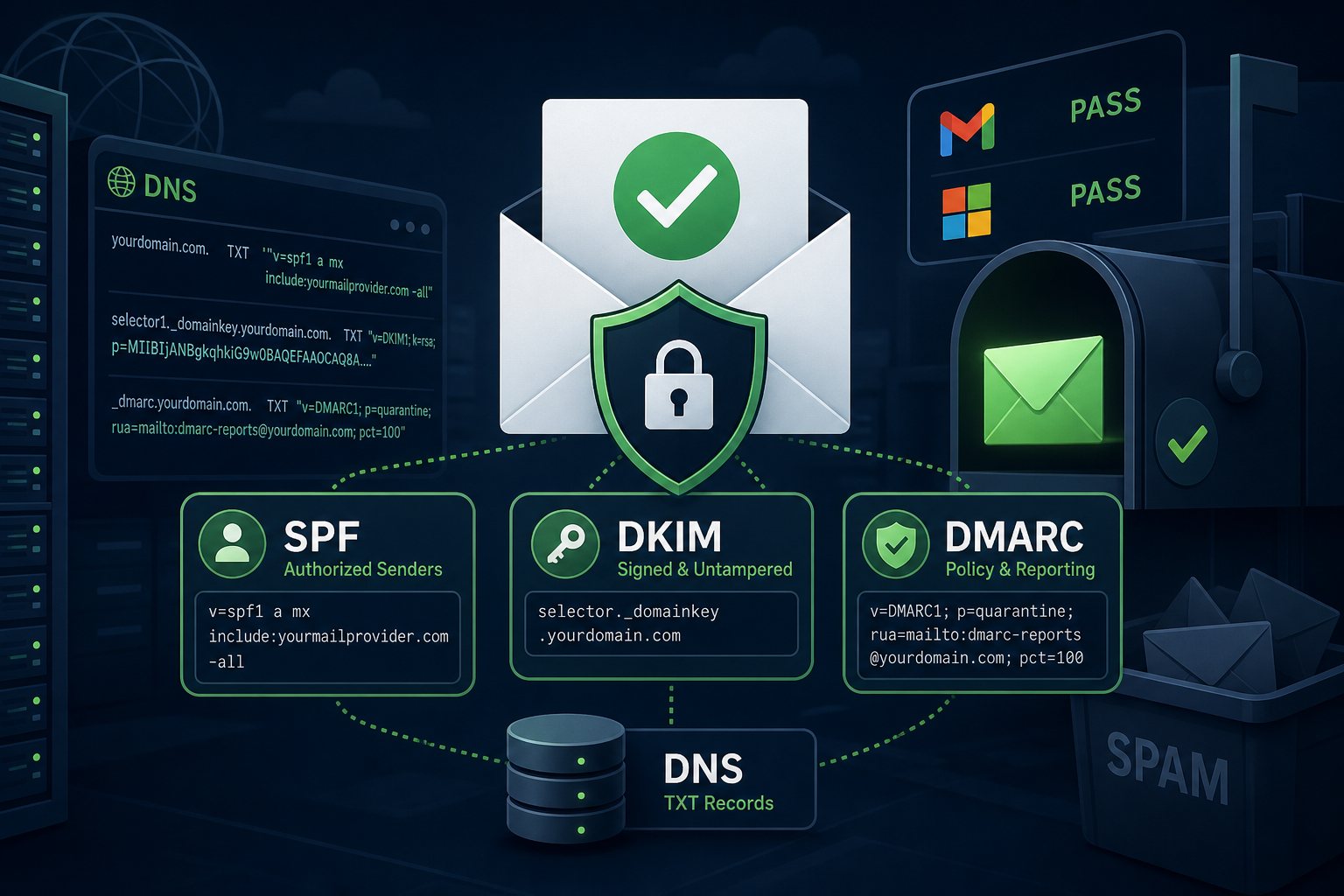
If your invoices land in spam, your password resets never arrive, and your newsletter quietly vanishes, the cause is almost always the same: three DNS records that aren't set up — or aren't set up correctly. SPF, DKIM, and DMARC are how the receiving mail server decides whether a message that claims to be from your domain is actually from you. Since Google and Yahoo began enforcing authentication requirements on bulk senders in 2024, getting all three right is no longer optional — it's the price of admission to the inbox.
This is a complete, do-it-yourself setup guide. Work through it in order, because each record builds on the last.
What each record actually does
- SPF (Sender Policy Framework) — publishes the list of servers allowed to send mail for your domain. The receiver checks the sending server's IP against that list.
- DKIM (DomainKeys Identified Mail) — adds a cryptographic signature to every message. The receiver fetches your public key from DNS and verifies the message wasn't forged or altered in transit.
- DMARC (Domain-based Message Authentication, Reporting & Conformance) — ties the two together. It tells receivers what to do when a message fails SPF and DKIM, and asks them to send you reports.
You need all three. SPF and DKIM are the locks; DMARC is the policy that says what happens when someone picks them.
Step 1 — Set up SPF
SPF lives in a single TXT record on your root domain. It starts with v=spf1, lists your authorized senders, and ends with an all mechanism that says what to do with everyone else.
A simple record for a domain that sends only through Google Workspace looks like this:
v=spf1 include:_spf.google.com -all
If you send through several services — say Google for staff mail and a marketing platform — you combine them:
v=spf1 include:_spf.google.com include:sendgrid.net -all
Two rules that trip up almost everyone:
- You may only have ONE SPF record per domain. Two
v=spf1records is a hard fail — merge them into one with multipleinclude:terms. - SPF allows a maximum of 10 DNS lookups. Each
include:,a, andmxcounts. Blow past ten and SPF returnspermerrorand silently stops working. If you're near the limit, drop unused includes or use a flattening service.
The ending matters: -all (hard fail) tells receivers to reject anything not on the list; ~all (soft fail) means "probably not us, but accept and flag." Start with ~all while you confirm you've listed every legitimate sender, then tighten to -all.
Step 2 — Set up DKIM
DKIM uses a key pair. The private key lives with your mail provider and signs outgoing mail; the public key lives in your DNS so receivers can verify the signature. You don't generate the keys by hand — your provider does, and hands you a record to publish.
- In your mail provider's admin console, find the DKIM / "authenticate email" / "email signing" section and enable it. Use a 2048-bit key if offered.
- The provider gives you a selector (a label like
google,s1, ork1) and a long public key. - Publish it as a
TXT(or sometimesCNAME) record atselector._domainkey.yourdomain.com. For example:google._domainkey.yourdomain.com.
The published value looks like this (truncated):
v=DKIM1; k=rsa; p=MIIBIjANBgkqhkiG9w0BAQEFAAOCAQ8A...
Some providers (Google Workspace, Microsoft 365) ask you to publish a CNAME that points back to their DNS instead — that's better, because it lets them rotate keys for you without you touching DNS again. Either way, after publishing, return to the console and click "Start authentication" / "Enable" — DKIM is not active until you flip that switch on the provider side, even after DNS propagates.
Step 3 — Set up DMARC
DMARC is one more TXT record, published at _dmarc.yourdomain.com. Here is a sensible starting record:
v=DMARC1; p=none; rua=mailto:dmarc-reports@yourdomain.com; fo=1; adkim=s; aspf=s
Breaking that down:
p=none— the policy.nonemeans "monitor only, take no action." We'll escalate this later.rua=mailto:...— where aggregate reports are sent. This is the most valuable part: receivers email you daily XML summaries of who is sending as your domain and whether they pass.adkim=s/aspf=s— strict alignment, requiring the signing/sending domain to match yourFrom:domain exactly. User(relaxed) if you send from subdomains.pct=100(optional) — the percentage of mail the policy applies to; handy for a gradual rollout.
DMARC only passes if a message passes SPF or DKIM and that passing record is aligned with the visible From: domain. This is why a message can pass raw SPF yet still fail DMARC — the SPF domain didn't match the From domain. Alignment is the whole point.
Step 4 — Roll out DMARC enforcement gradually
Never start at p=reject. You'll bounce legitimate mail you forgot about — the CRM, the helpdesk, the accounting app that sends from your domain. Instead, escalate over a few weeks:
- Weeks 1–2:
p=none. Collect aggregate reports and read them. Every sending source shows up here — find the legitimate ones that are failing and fix their SPF/DKIM. - Weeks 3–4:
p=quarantine. Now failing mail goes to spam rather than the inbox. Keep watching reports; nothing legitimate should be failing by now. - Week 5+:
p=reject. Failing mail is refused outright. This is the goal — full protection against spoofing of your domain.
The raw XML reports are unreadable by hand. Point rua at a free or low-cost DMARC monitoring service (several exist) so you get a dashboard instead of attachments.
Step 5 — Verify everything works
From any terminal, confirm each record resolves:
dig +short TXT yourdomain.com — shows your SPF record
dig +short TXT google._domainkey.yourdomain.com — shows your DKIM key
dig +short TXT _dmarc.yourdomain.com — shows your DMARC policy
Then send a real message to a free deliverability tester (search "mail tester"), which scores all three and flags problems. Finally, open a received message in Gmail, click Show original, and confirm you see PASS next to SPF, DKIM, and DMARC.
Common mistakes to avoid
- Two SPF records. Merge into one. This is the single most common failure.
- Exceeding 10 SPF lookups. Audit your includes; remove dead vendors.
- Forgetting a sender. The invoicing app, the form plugin, the newsletter tool — each needs to be in SPF and ideally DKIM-signing. Reports will reveal the ones you missed.
- Jumping straight to
p=reject. Always pass throughnoneandquarantinefirst. - Letting a DNS provider "split" long TXT records incorrectly. Long DKIM keys sometimes need to be entered as a single value or split into quoted chunks — follow your DNS host's instructions exactly.
The payoff
Done properly, these three records do two jobs at once: they get your legitimate mail reliably into inboxes, and they make it nearly impossible for anyone to spoof your domain in a phishing attack against your customers. That second benefit is why DMARC enforcement is increasingly a requirement in cyber-insurance questionnaires and vendor security reviews.
It's fiddly, order-dependent work where one wrong character fails silently — which is exactly why we configure and then watch SPF, DKIM, and DMARC on every domain we host, with 24x7x365 NOC monitoring catching deliverability regressions before customers notice their mail stopped arriving. Set it up once, carefully, and email becomes something you stop thinking about.